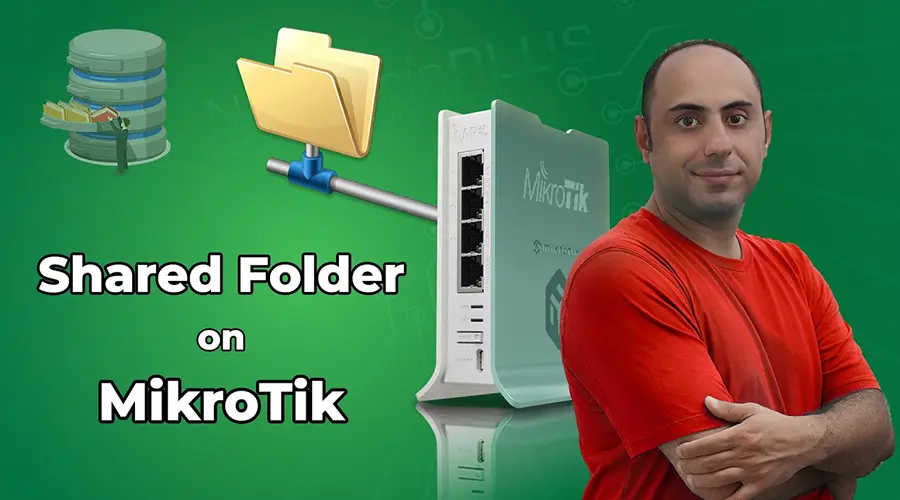
Typically, when we need to share files on a network, we dedicate a PC or a server to host a shared drive. But what happens if that system crashes or someone accidentally turns it off? Everyone loses access.
If you have a MikroTik router with a USB port, you can bypass the need for an always-on PC. By using the built-in SMB (Server Message Block) feature, you use MikroTik FIle Share feature and turn your router into a simple file server. It’s efficient, reliable, and honestly, a very cool way to use your hardware.
Watch the full step-by-step walkthrough on the Net Admin HUB YouTube channel:
Why Use Your MikroTik for File Sharing?
- Zero Dependence: Your shared folder stays online as long as your router is running.
- Low Power: No need to keep a power-hungry PC running 24/7 just for file access.
- Easy Setup: If you’re already using WinBox, you’re halfway there.
Step 1: Preparing Your Storage
Most MikroTik routers have very limited internal storage. To share files, you’ll need a router with a USB port (like the RB951 or similar).
- Connect a USB flash drive or external hard drive to your router.
- Important: Make sure your drive is formatted as FAT32 or ExFAT. On many MikroTik architectures (like MIPSBE), NTFS drives won’t be recognized.
Step 2: Enable the SMB Service
Open WinBox and follow these steps:
- Go to IP > SMB.
- Check the Enabled box.
- Security Tip: Uncheck Allow Guest. You don’t want just anyone on your network browsing your files without a password.
- Interfaces: Set the interface to your bridge (your local network). Do not leave it on “all,” or you might accidentally expose your files to the public internet on
ether1.
Step 3: Manage Users and Shares
You need to tell the router who can access the files and where they are located.
- Users: Click on the Users button in the SMB window. Create a username (e.g.,
ramtin) and a strong password. Uncheck Read Only if you want to be able to upload files. - Shares: Click on Shares. You can use the default “pub” folder, but it’s better to click
+and point to your USB drive path (which you can find in the Files menu).
Step 4: Accessing the Drive from Windows
Once everything is configured, accessing it from your PC is simple:
- Open File Explorer and type
\\YOUR_MIKROTIK_IP(e.g.,\\192.168.88.1). - Enter the SMB credentials you created in Step 3.
- Pro Tip: Right-click the folder and select Map Network Drive so it shows up as a permanent disk (like Z: or Y:) in your “This PC” window.
Summary for Quick Setup
| Feature | Setting | Path in WinBox |
| SMB Status | Enabled | IP > SMB |
| Guest Access | Disabled (for security) | IP > SMB |
| Interface | Bridge (Local Network) | IP > SMB > Interfaces |
| Storage | USB (FAT32/ExFAT) | Files Menu |
A Final Word of Advice
While MikroTik makes a great mini-file server for small teams or home use, remember to backup your data. Hardware can fail, and USB drives aren’t forever. You can even use a simple RouterOS script to automate backups of your shared folder to the cloud or another server.
Questions about the setup MikroTik File Share? Drop a comment on the video or join the conversation on our Telegram channel!